Never lose a paper receipt
on a business trip again.
Tripenzo is the business travel expense app that captures every receipt the moment you pay — snap, import a PDF, or type it in. On-device OCR fills in the rest, so nothing goes missing between the taxi and the expense report.
The Business Expense Tracker That Does Everything — Without a Subscription
A complete travel expense app and receipt scanner for iPhone and iPad. Multi-currency, multi-company, multi-trip — fast, private, and reliable on the road.
Smart OCR PREMIUM
Snap a photo or import a PDF of any receipt. On-device OCR extracts amounts, dates, currencies, and vendor names instantly. Receipt scans are stored permanently for later viewing and sharing.
Multi-Company Support
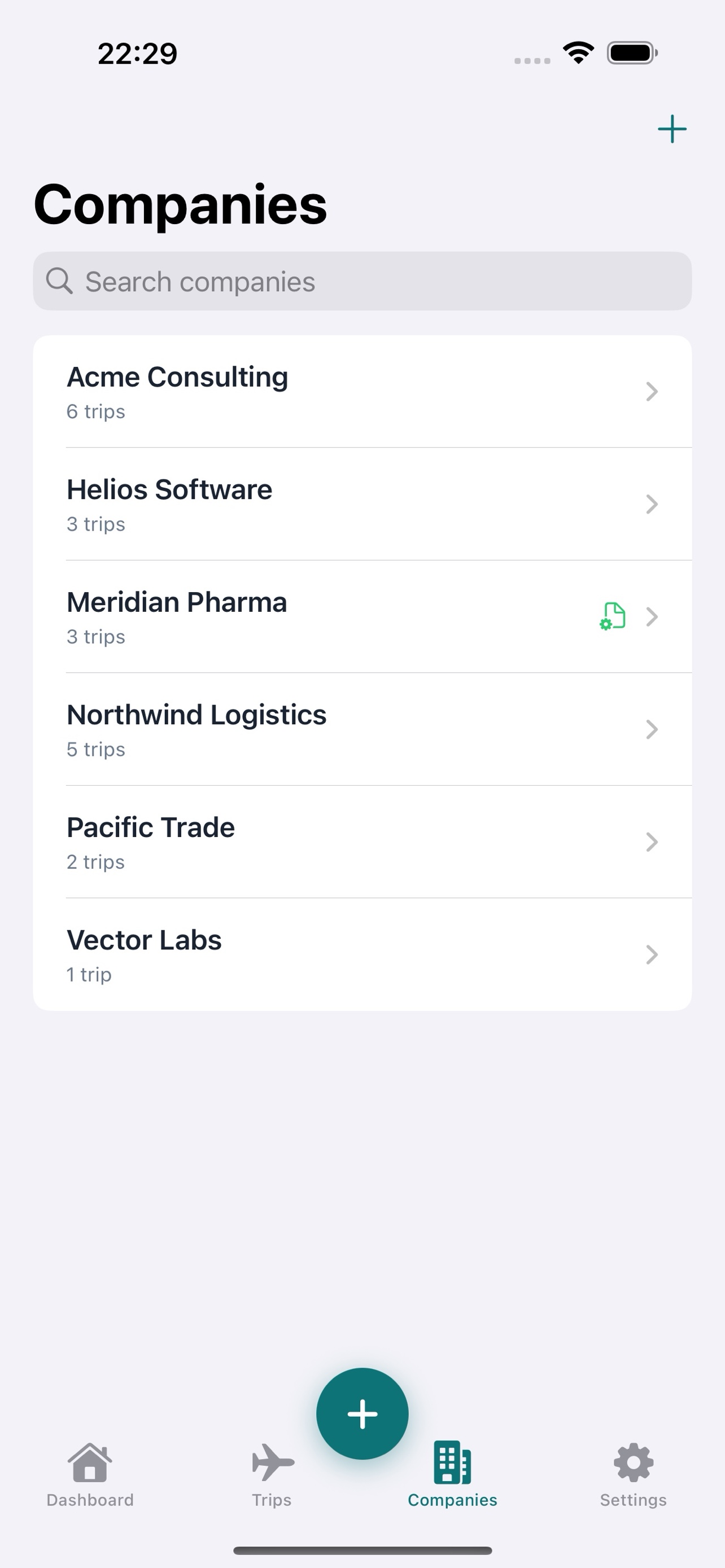
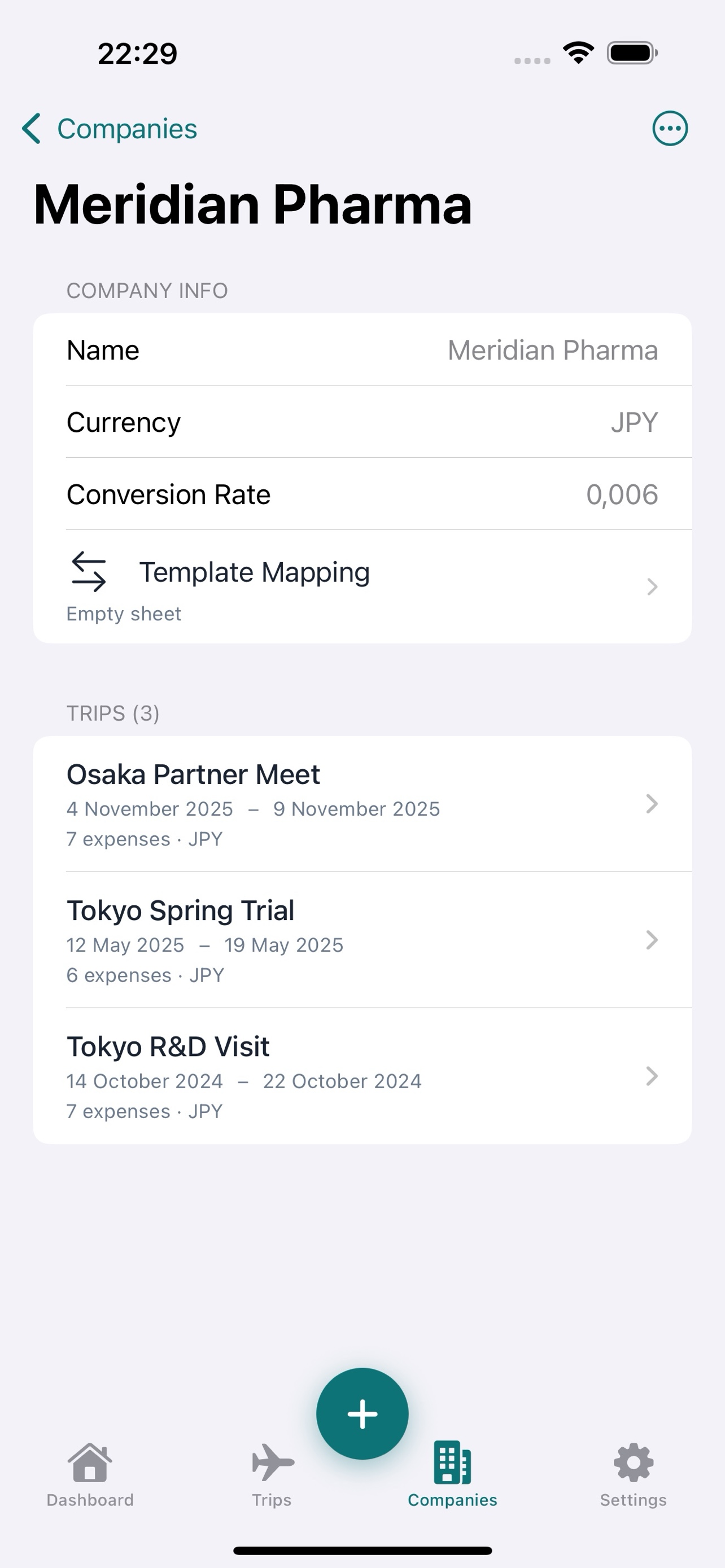
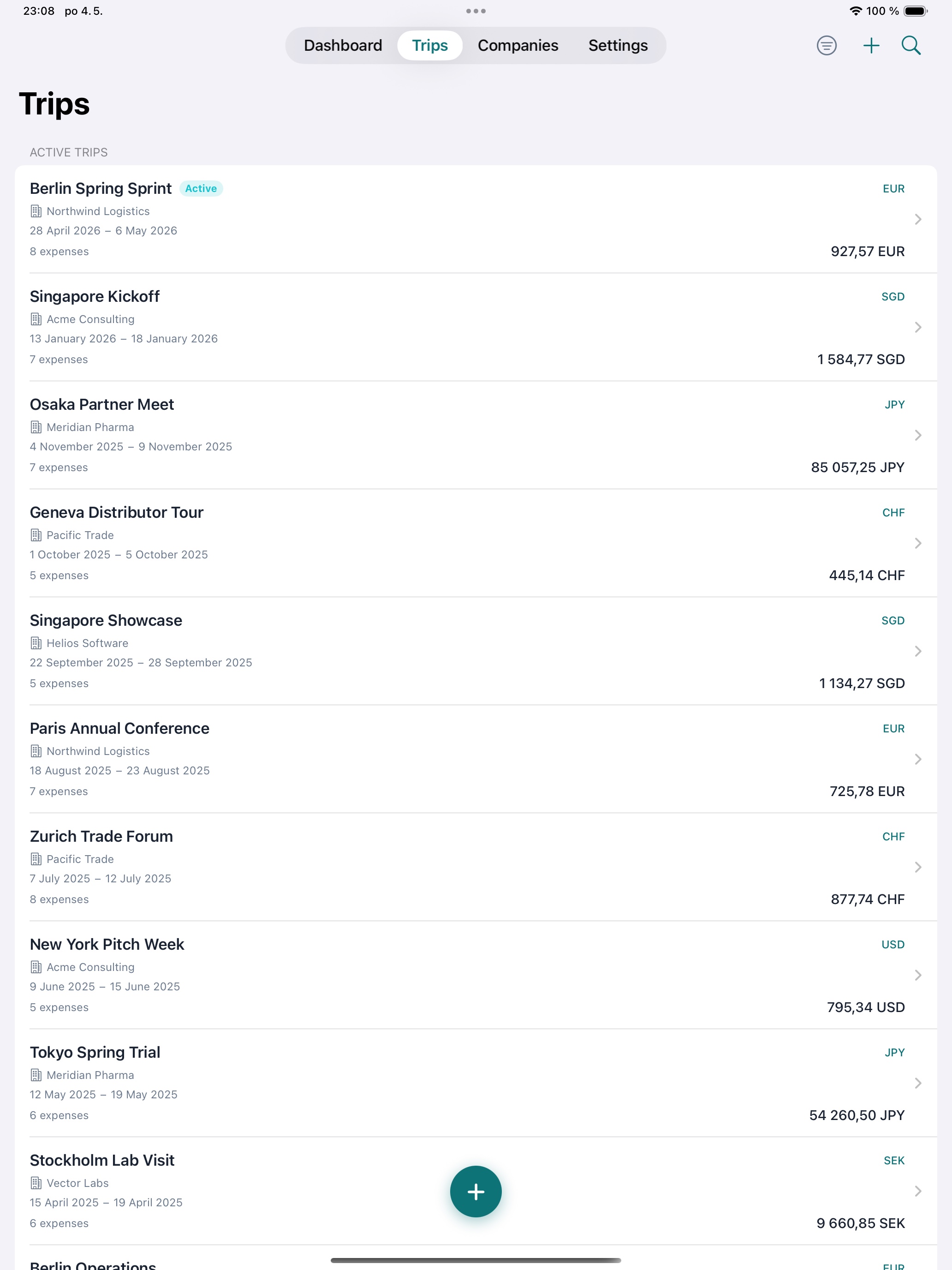
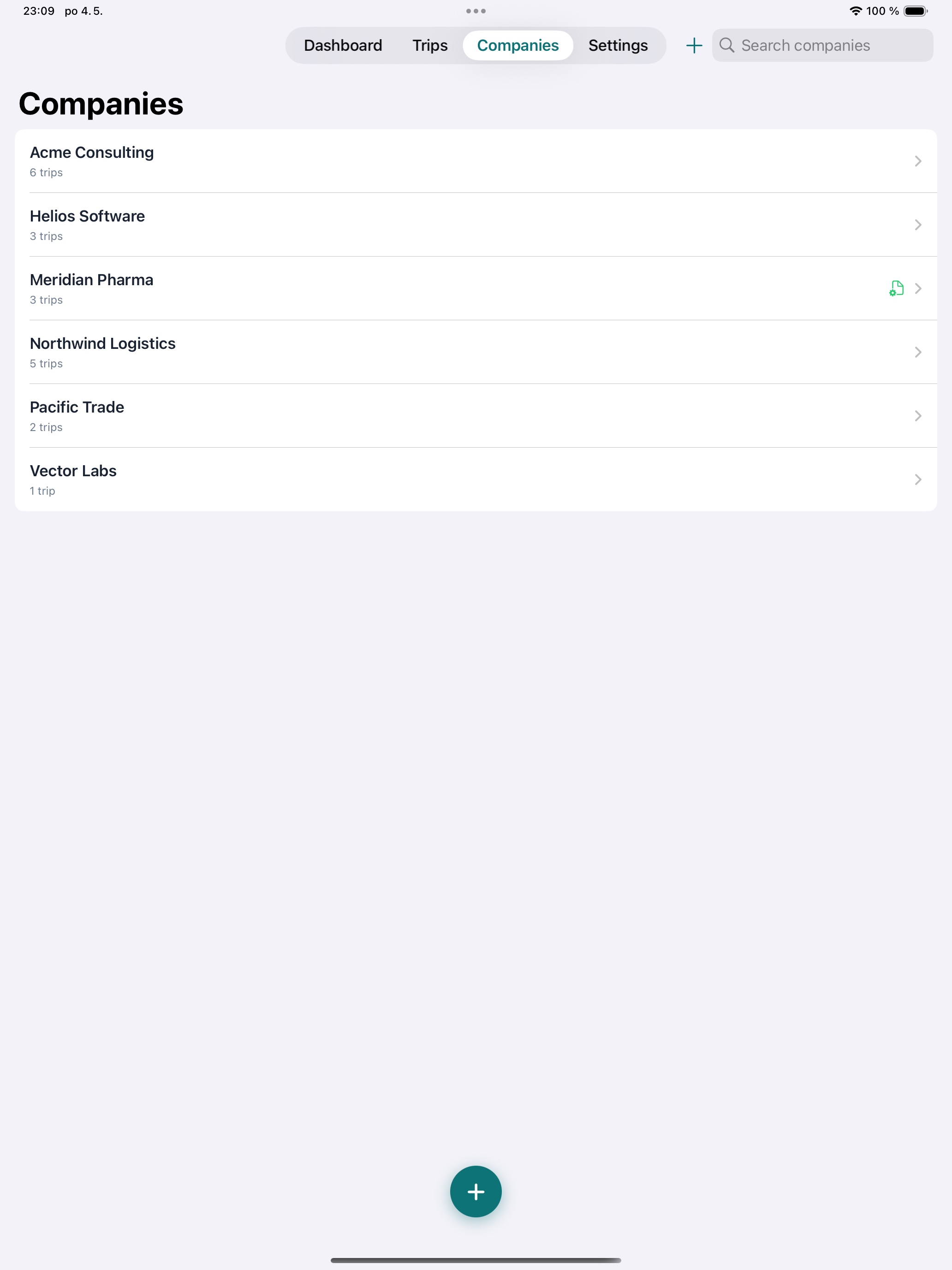
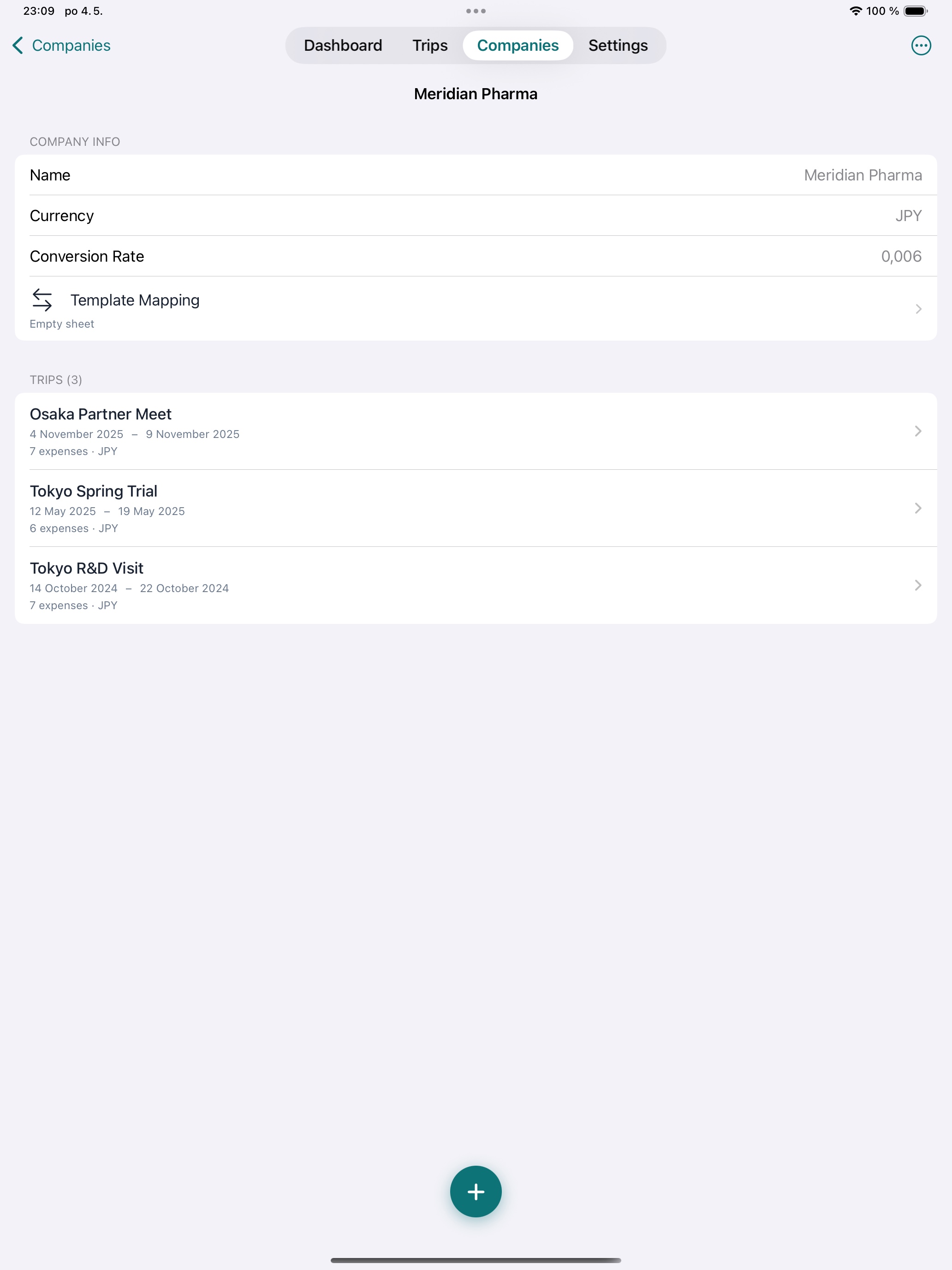
Consulting for multiple clients? Each company has its own currency and conversion rate. Organize expenses by company and trip — no overlap, no confusion.
Three-Tier Conversion
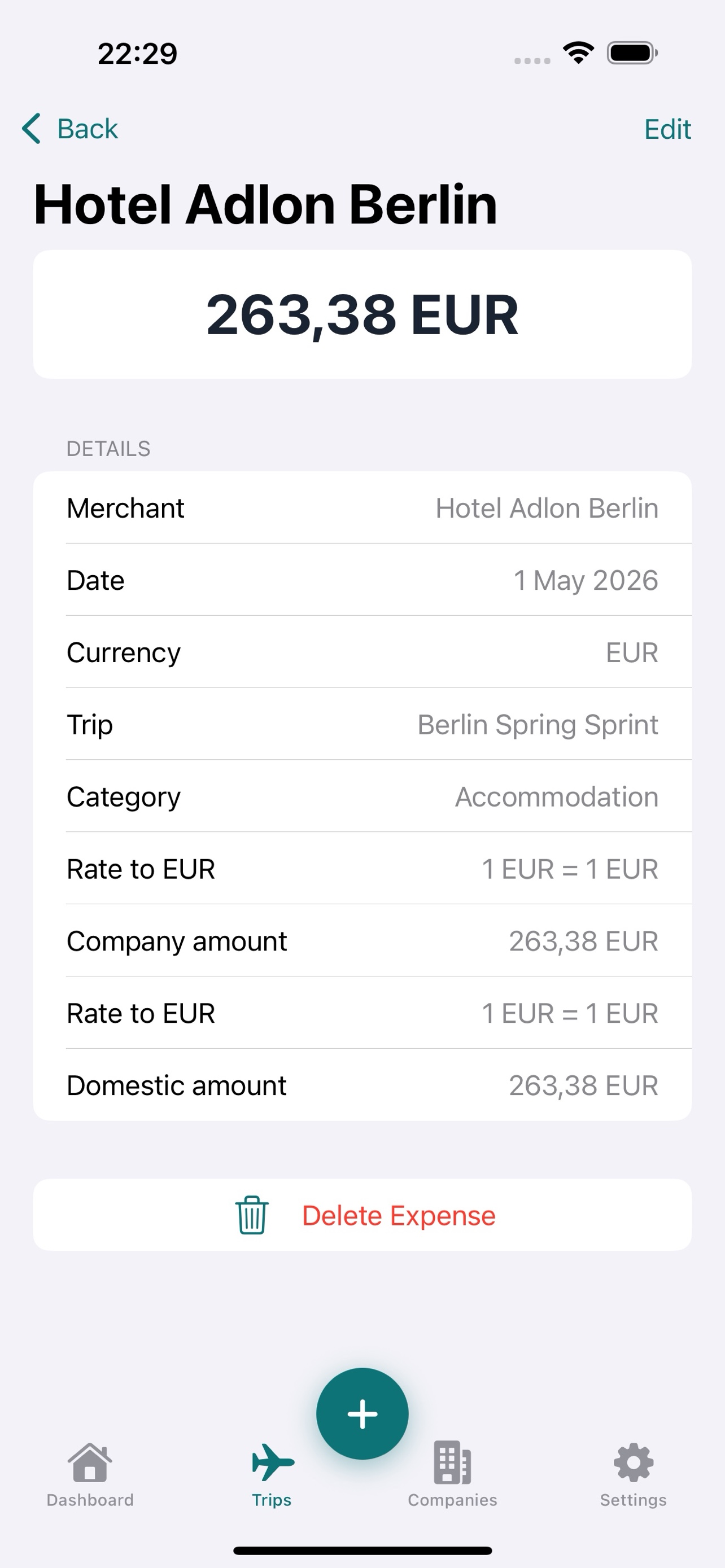
Every expense converts from payment currency to company currency, then to your personal currency. Rates prefill from trip and company defaults, with per-expense overrides and auto-fetch.
XLSX Report + Receipts ZIP PREMIUM
Upload your company's XLSX template and Tripenzo fills it in automatically — then bundles every receipt scan alongside in a single ZIP. Submit-ready, fully traceable, in seconds.
Private iCloud Sync PREMIUM
Your trips, expenses, and receipts sync seamlessly between iPhone and iPad through your own private iCloud (CloudKit). No third-party servers, no shared accounts — just your data, on your devices.
Backup & Restore PREMIUM
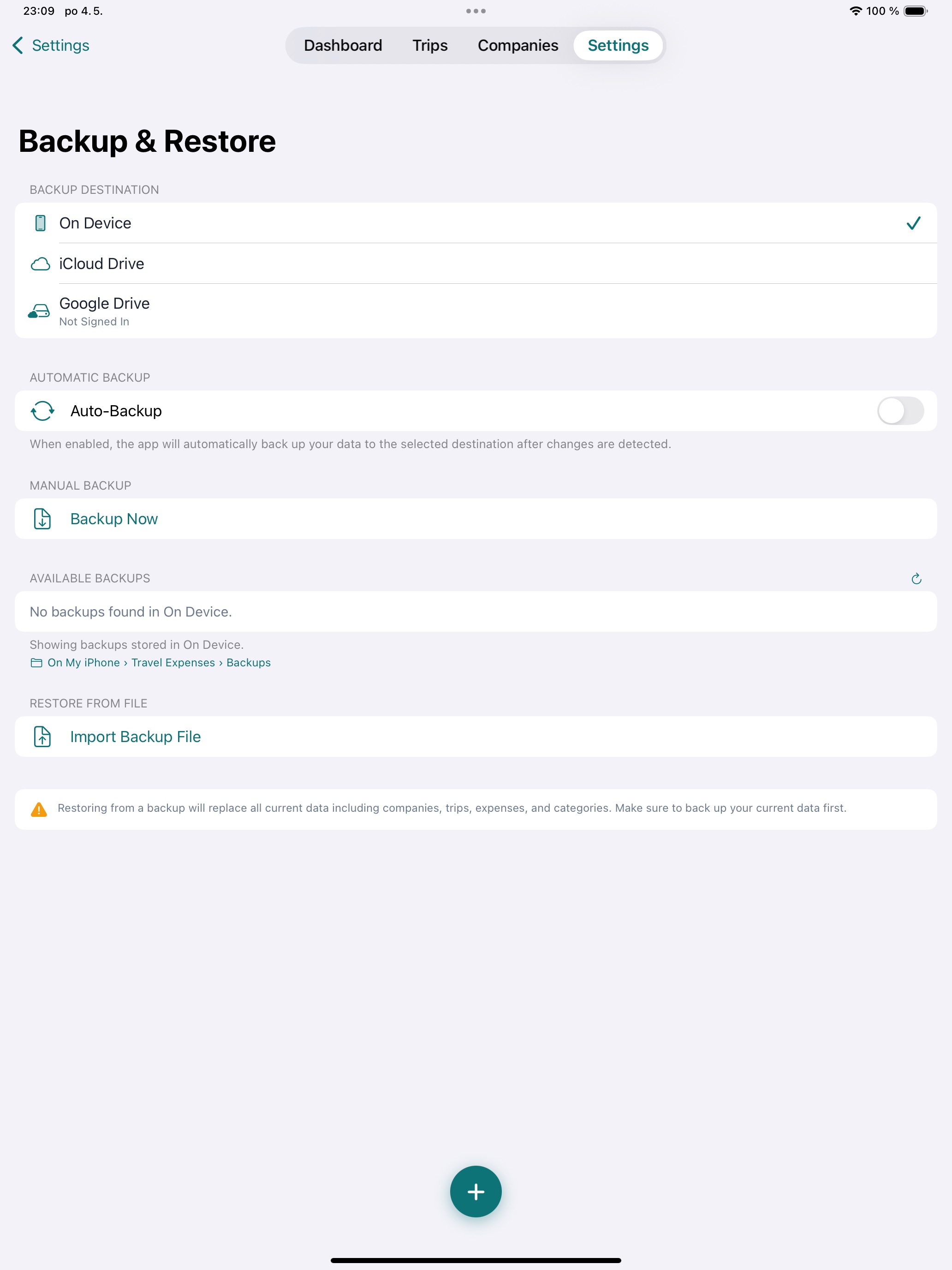
One-tap backup to iCloud Drive bundles every trip, expense, receipt, and template. Switching to a new iPhone? Restore everything in seconds.
Searchable Pickers
Choose from 160+ currencies and 195+ countries with instant search. Can't find what you need? Add any custom currency or country on the spot.
App Lock PREMIUM
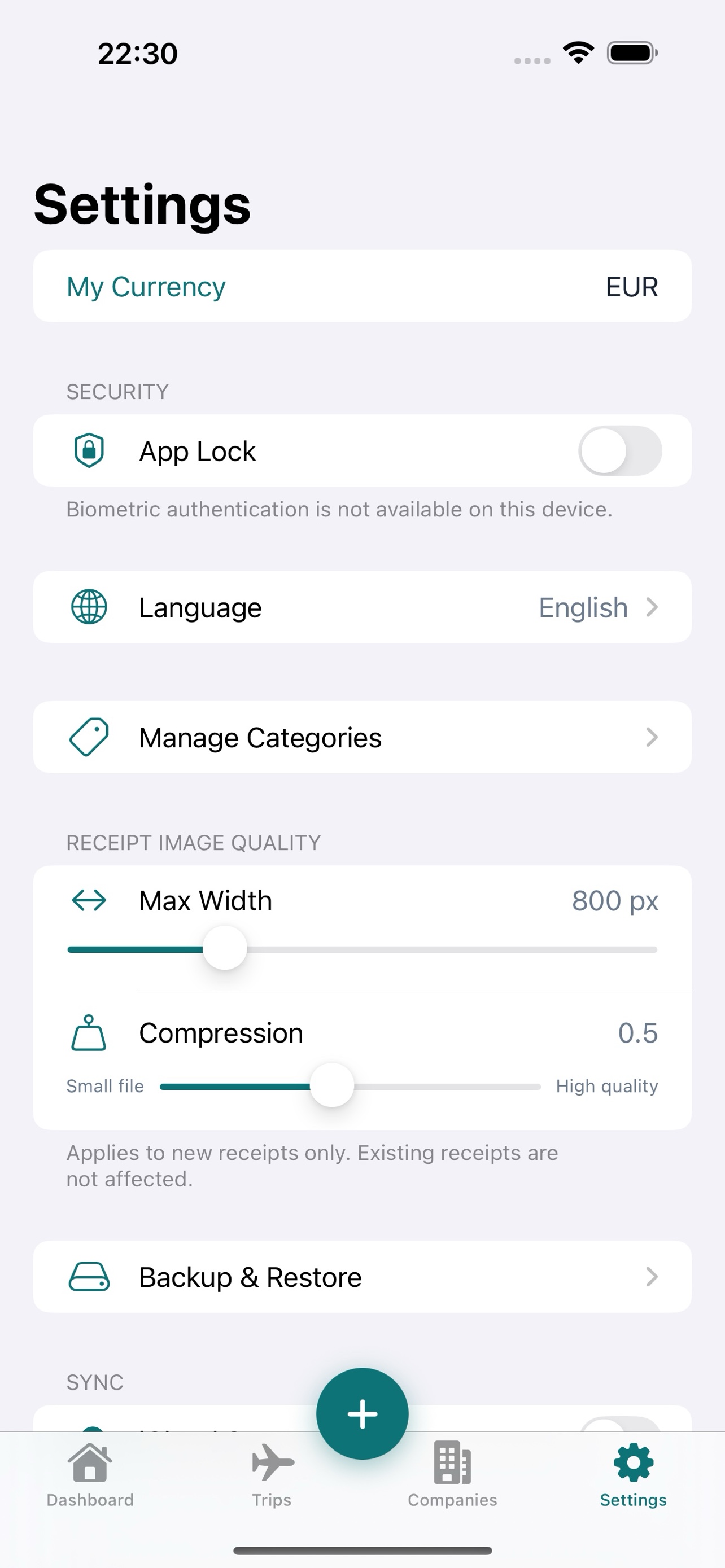
Protect your financial data with Face ID, Touch ID, or a PBKDF2-hashed PIN code. App Lock is automatically disabled if your Premium entitlement ever lapses.
The Travel Expense App Built for Real Business Travelers
Other expense report apps want your data, your money, or both. We just want your trips — and your expense reports — to go smoothly.
Free Core, Optional Premium
Manual expense entry, multi-company support, three-tier currency conversion, refund tracking, advanced filtering, dashboard statistics, the Help Center, and 25-language localization are all completely free. Want OCR auto-fill, report export (CSV & XLSX), backup & restore, App Lock, and iCloud sync across devices? A single one-time purchase unlocks all five — forever. No subscriptions, no recurring fees.
Works Offline
On a plane? In a hotel with terrible Wi-Fi? It doesn't matter. Everything — including OCR — runs directly on your device, no internet needed.
Fits Your Company's Process
Instead of forcing you into a generic format, Tripenzo adapts to your company's report template. Upload it once, and every trip report is auto-generated to spec.
Respects Your Privacy
Zero data collection. Zero tracking. No accounts to create. Your receipts, totals, and company information never leave your devices unless you choose to export them.
Private iCloud Sync — iPhone & iPad, in Sync PREMIUM
Tripenzo uses Apple's CloudKit to sync your trips, expenses, and receipts across your own devices through your private iCloud container. Nobody else can read it — not us, not anyone. Sign in once on iPad, your data is already there.
From Receipt Scanner to XLSX Expense Report in Four Steps
Built for consultants, contractors and field engineers who'd rather close a deal than chase a paper receipt — every step happens on your iPhone, offline-friendly, finance-team-ready.
Capture
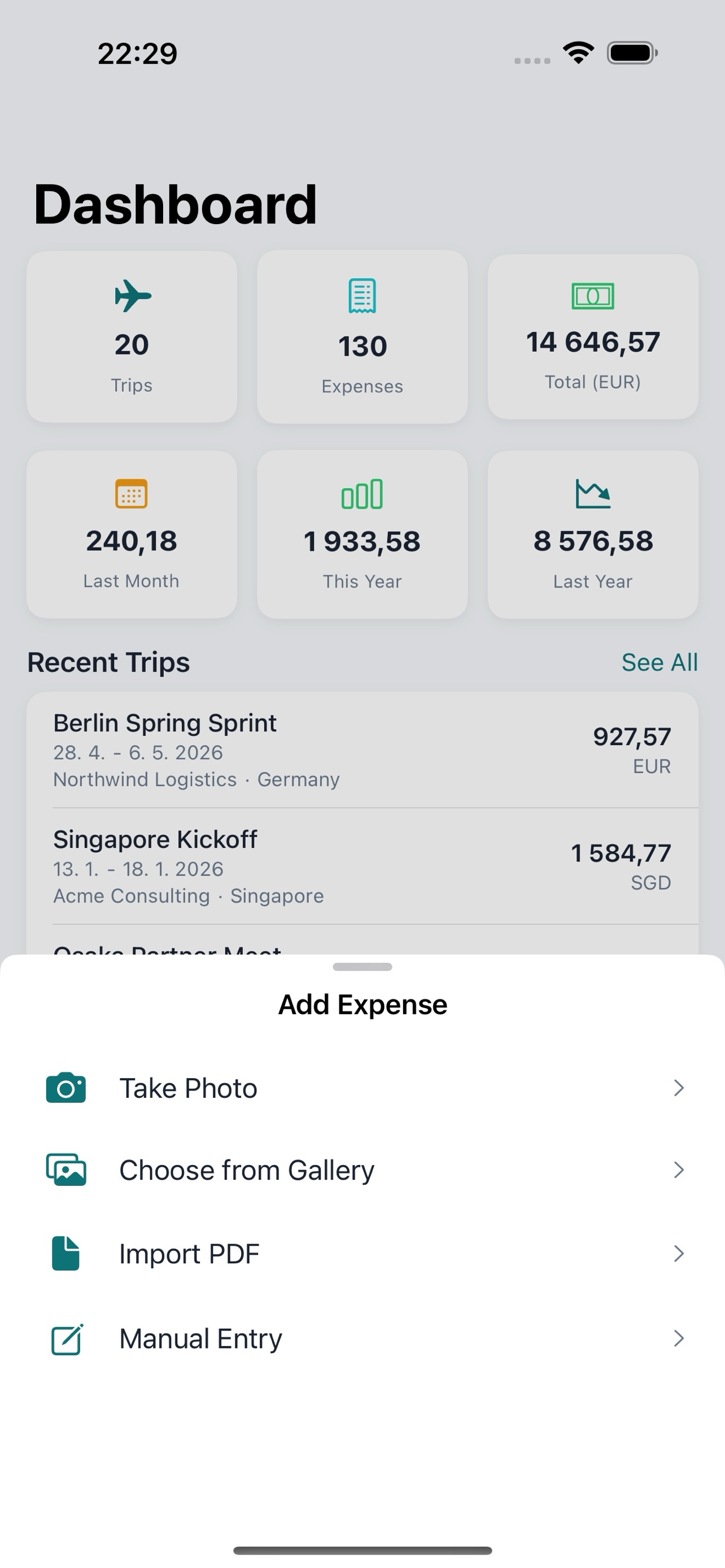
Snap, import a PDF, or drop in a photo — the moment you pay, the receipt is filed.
Convert
Three-tier currency conversion handles expense → company → home automatically.
Categorize
Pick a category, add a note, tag the trip. Done in seconds, even one-handed.
Report
One tap exports XLSX or CSV plus every receipt scan, zipped and ready to share.
A Closer Look
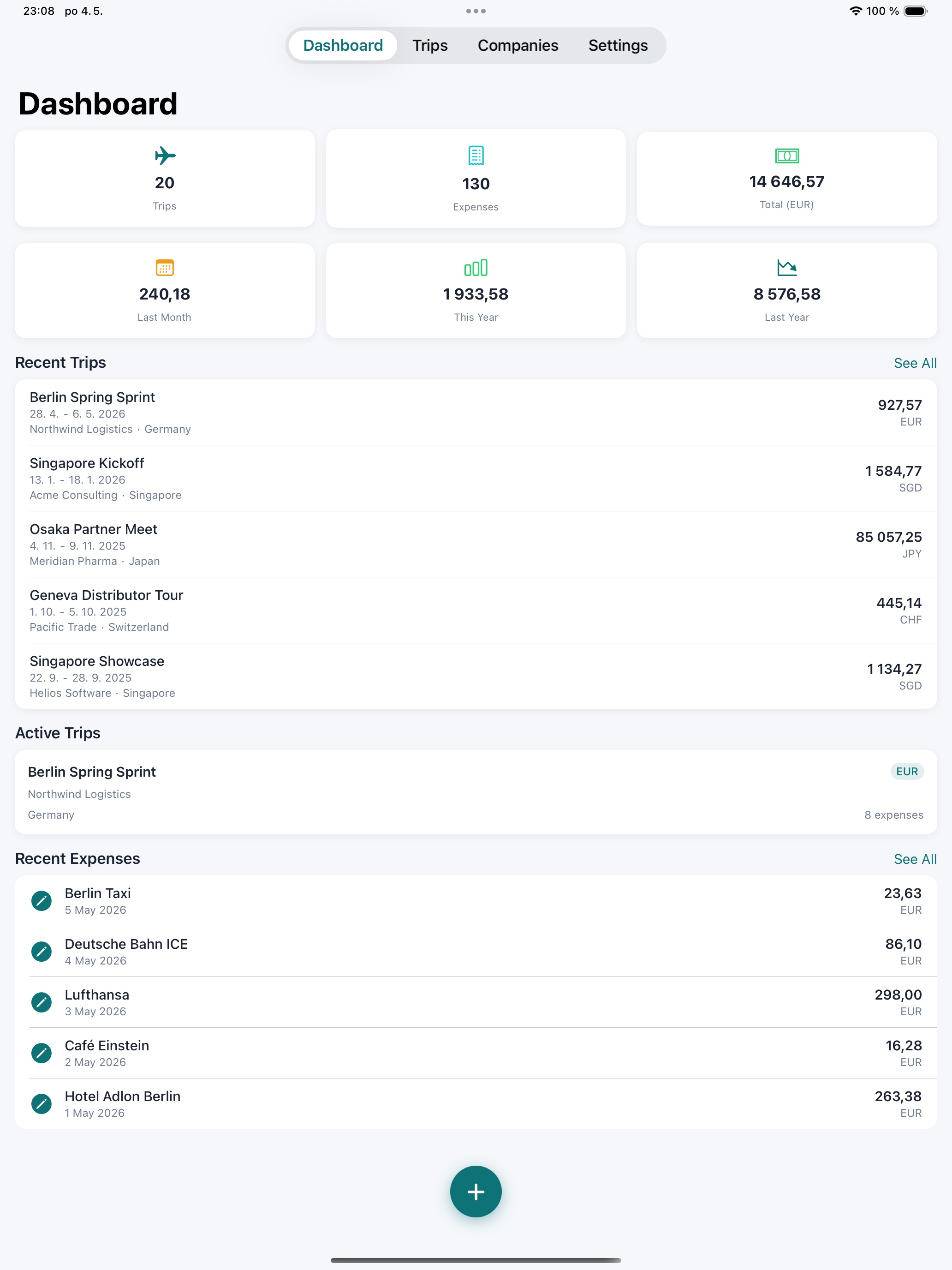
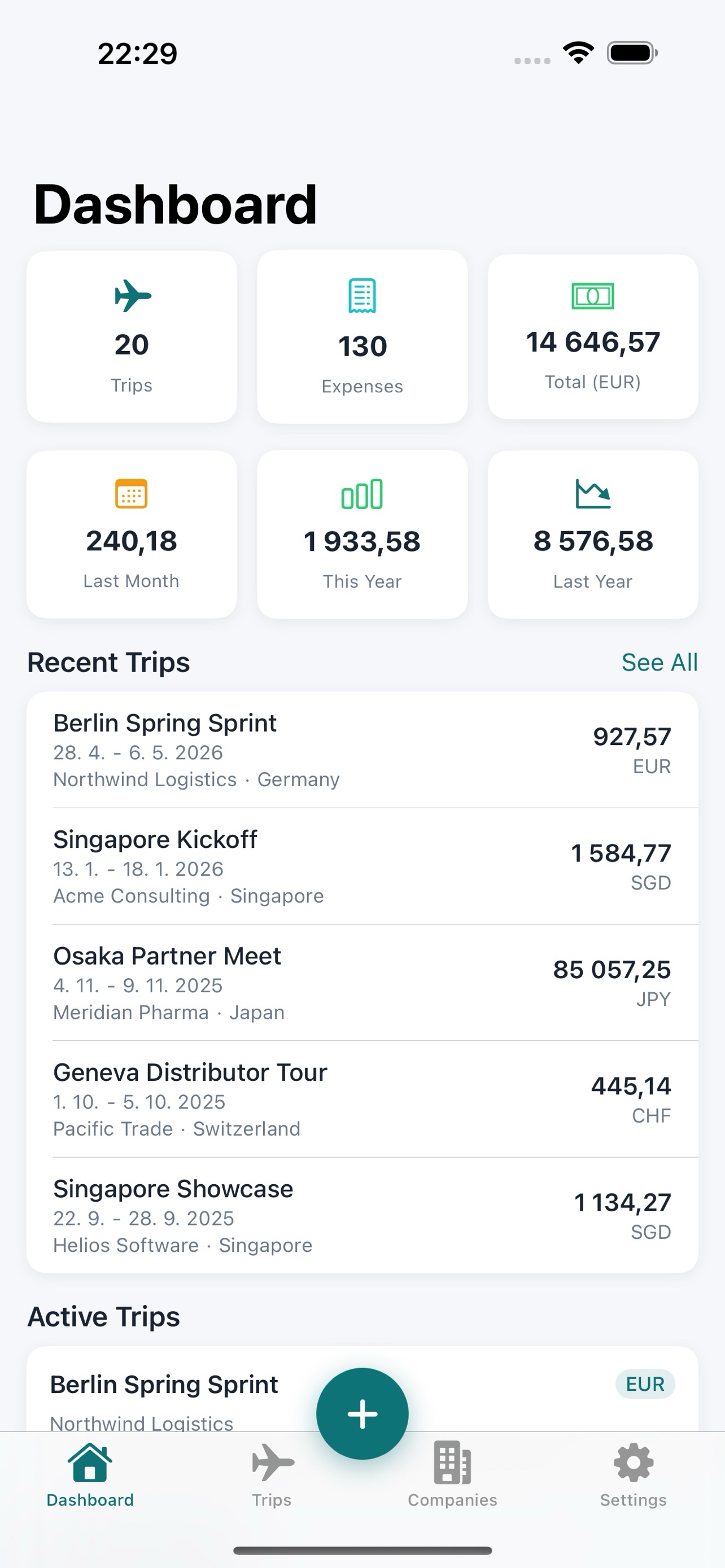
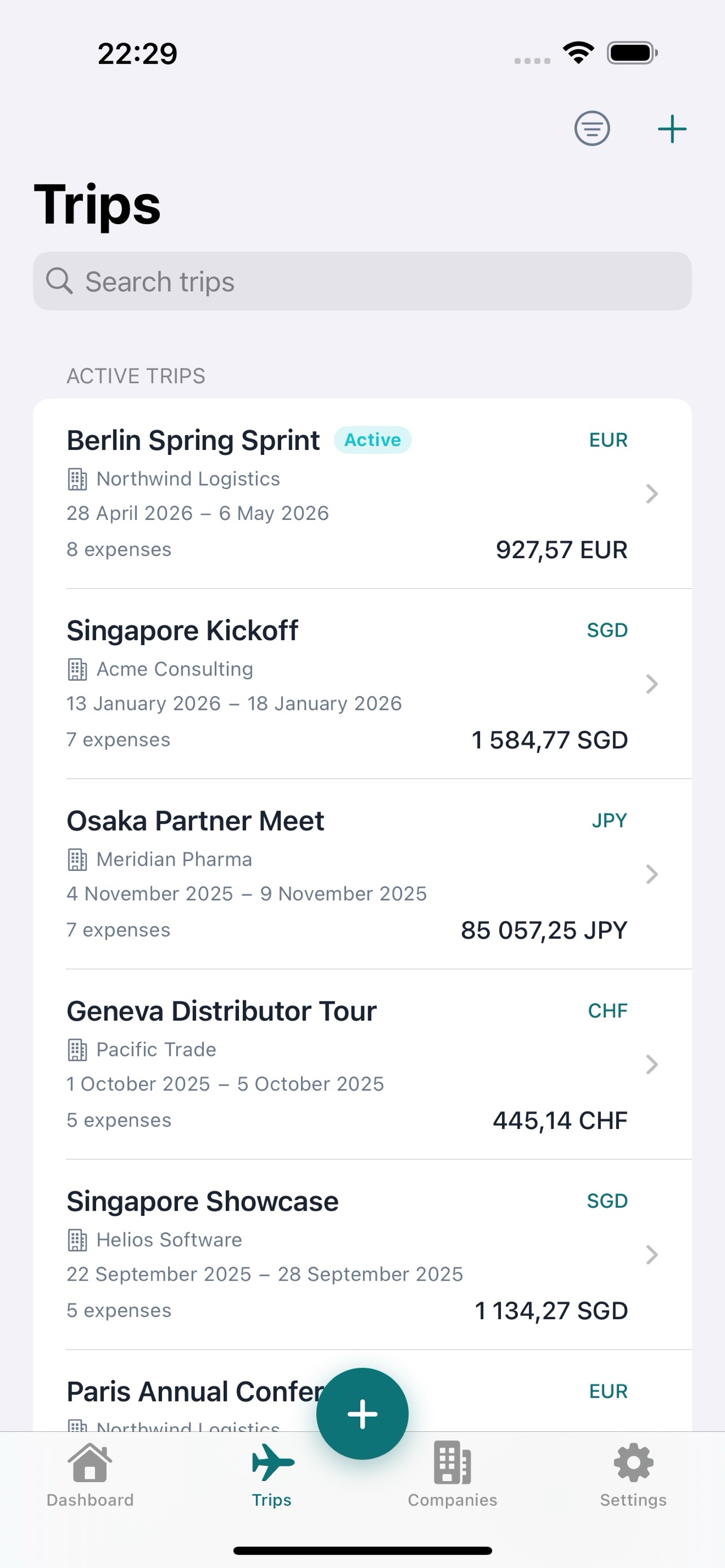
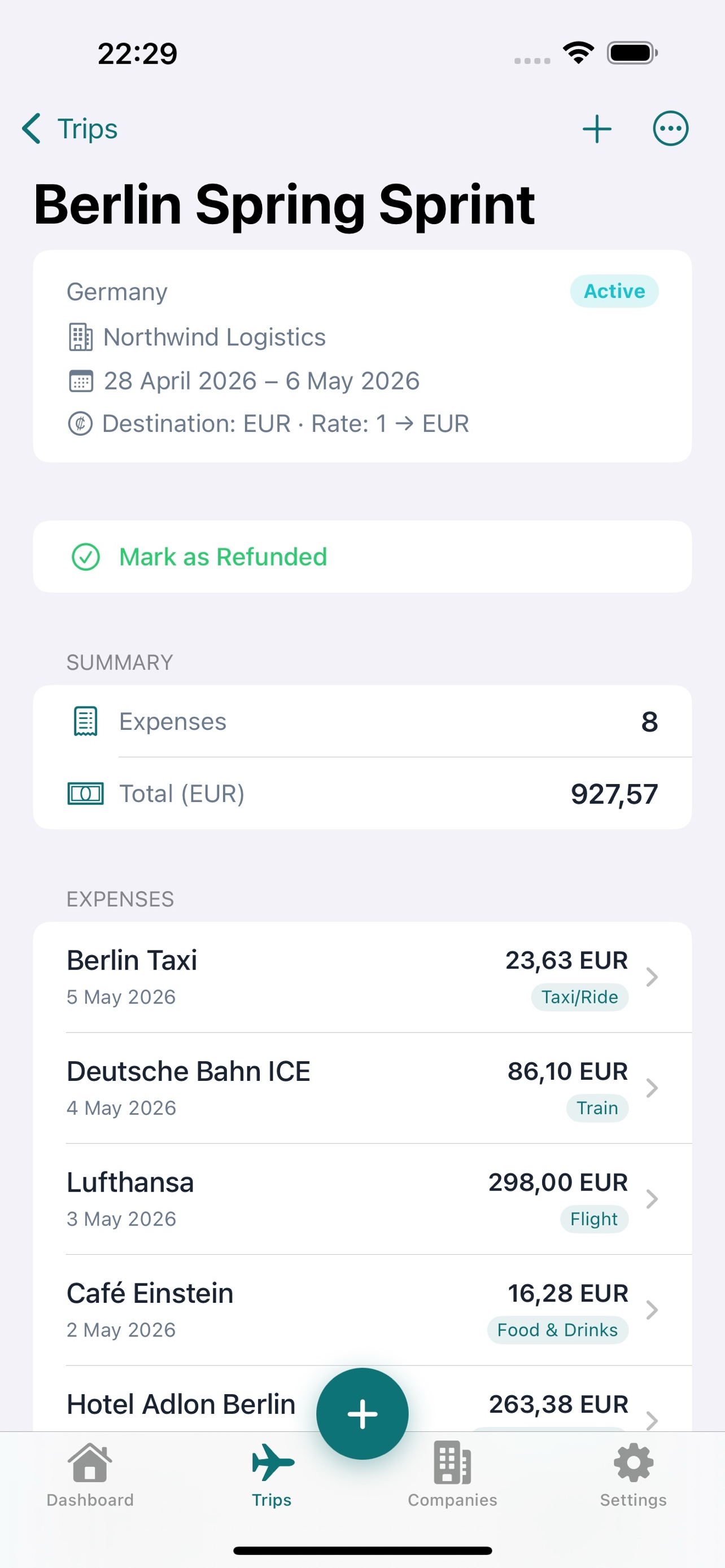
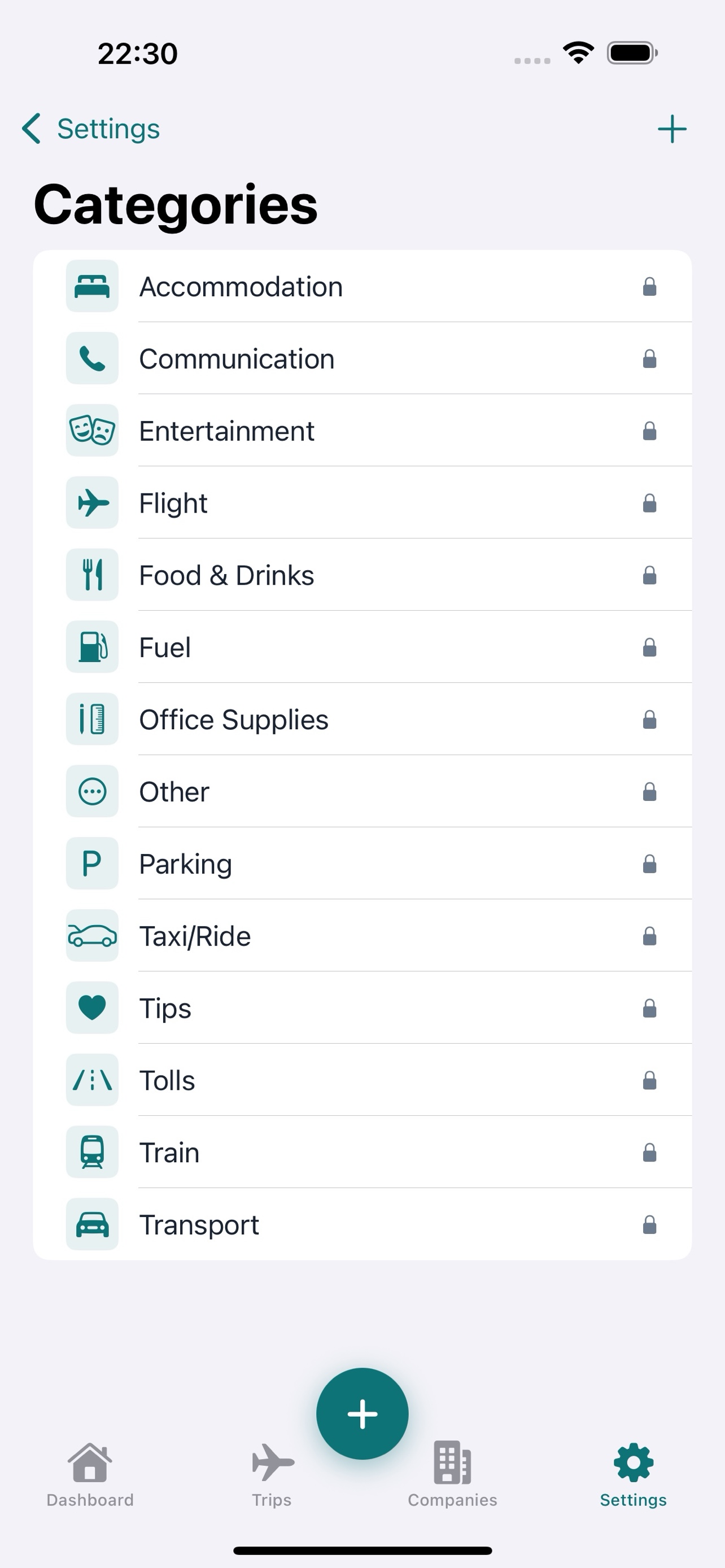
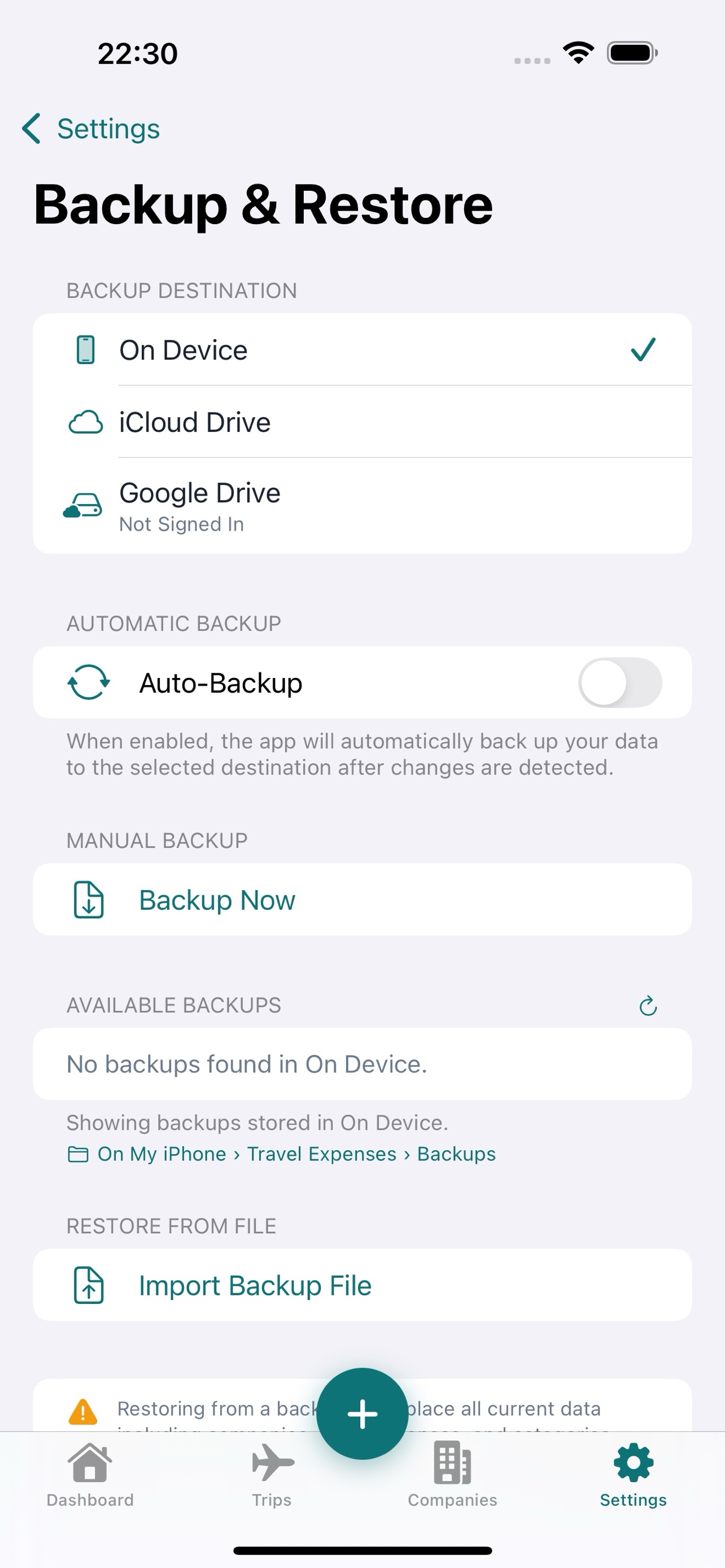
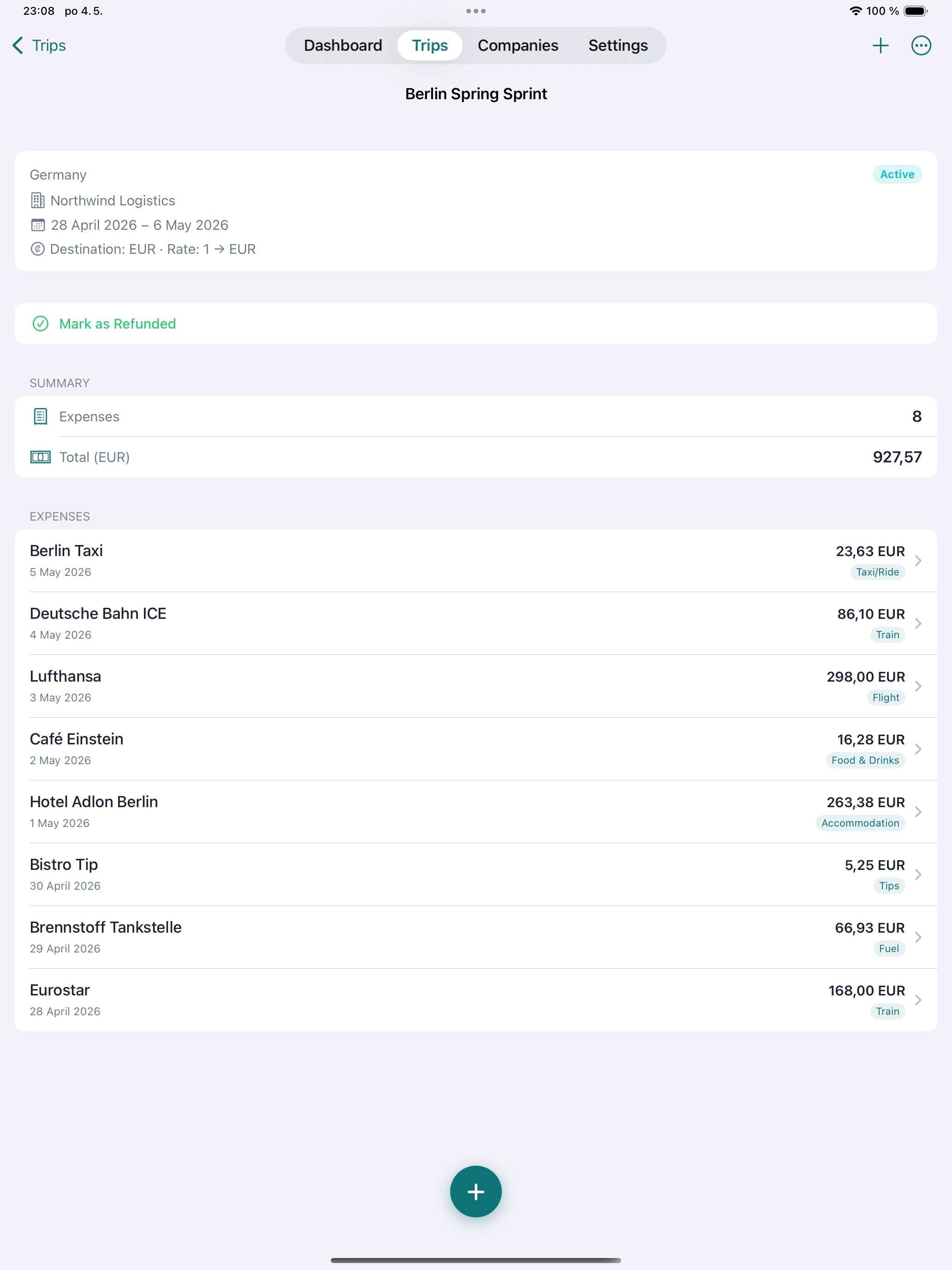
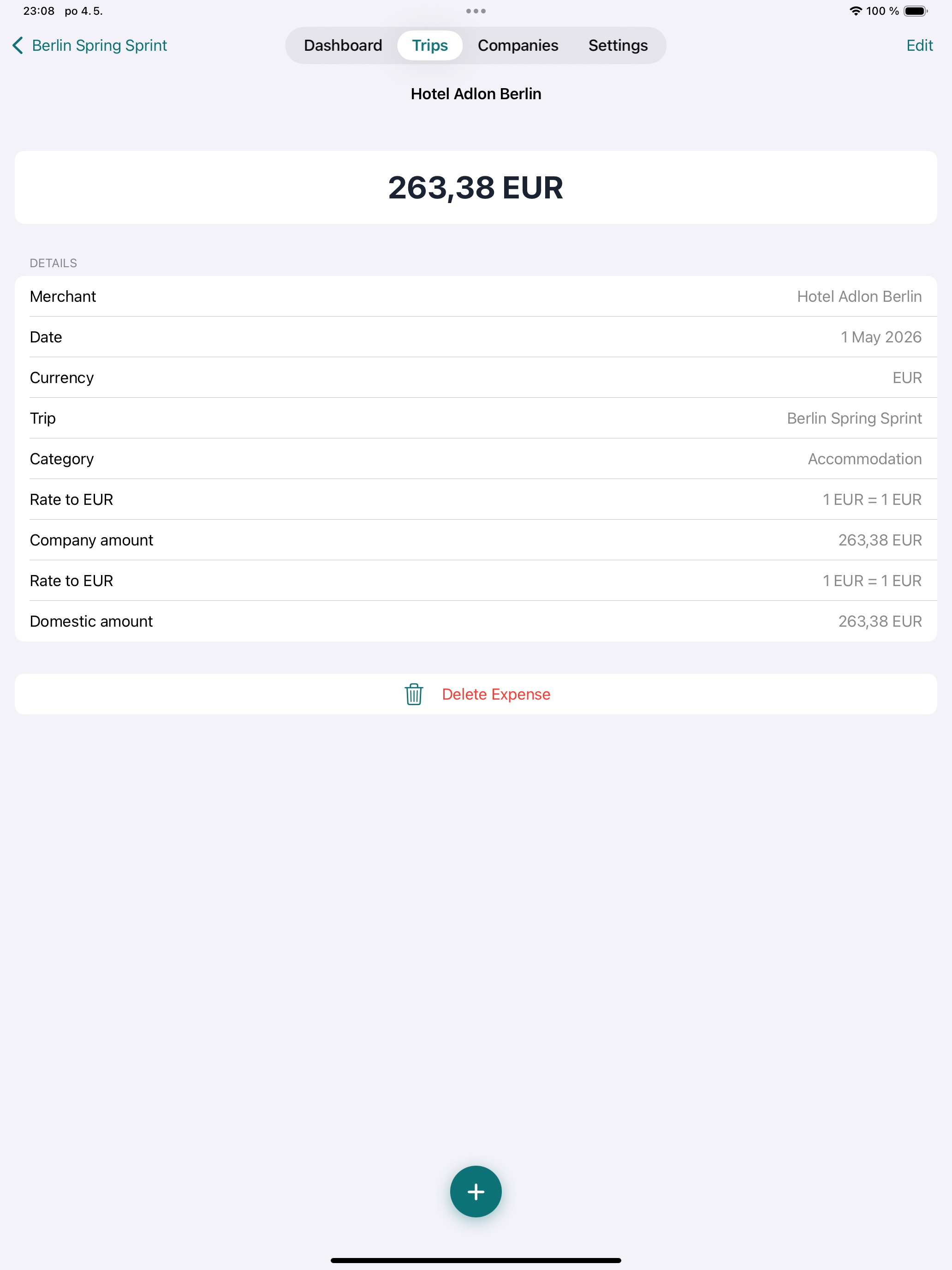
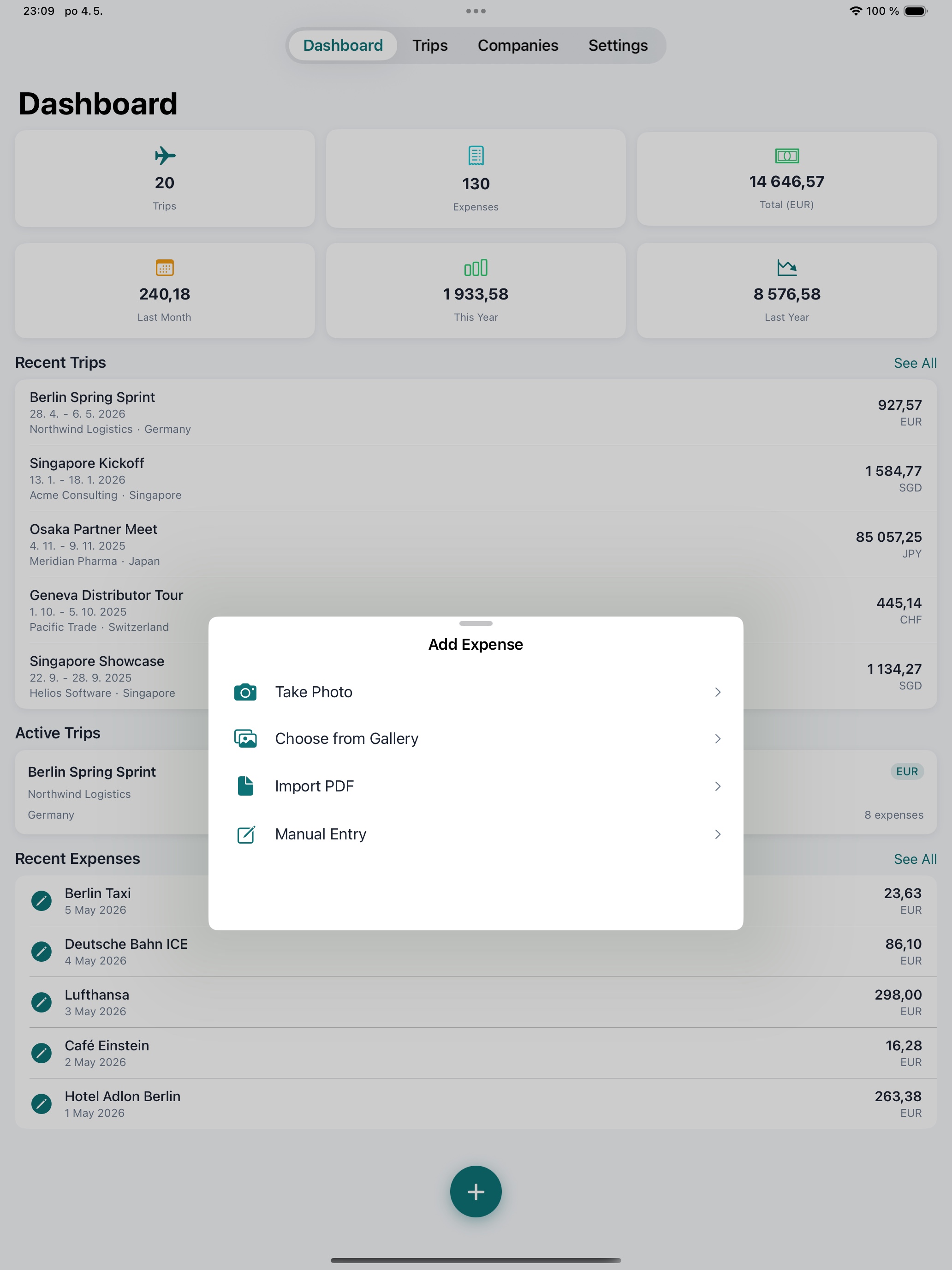
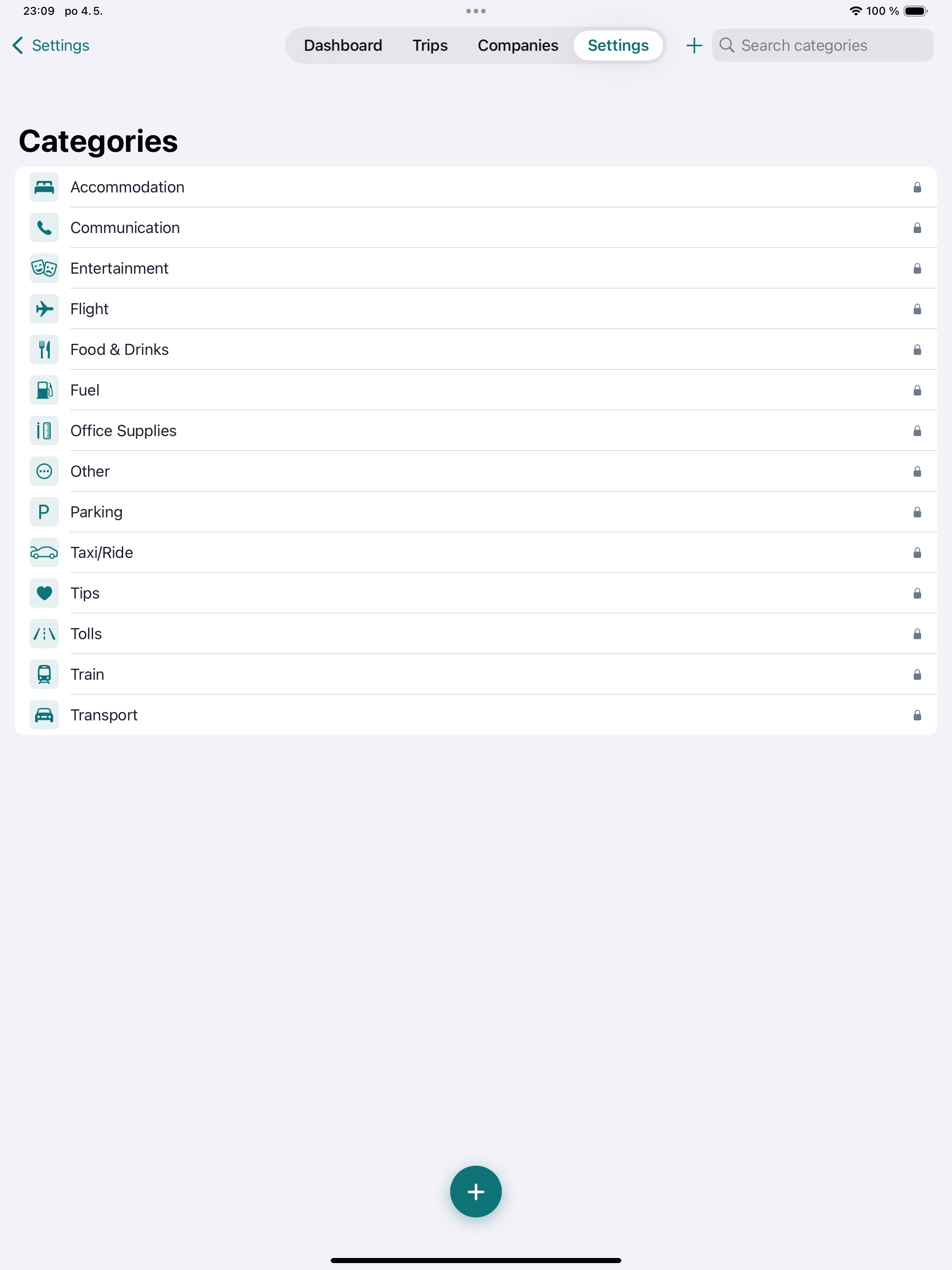
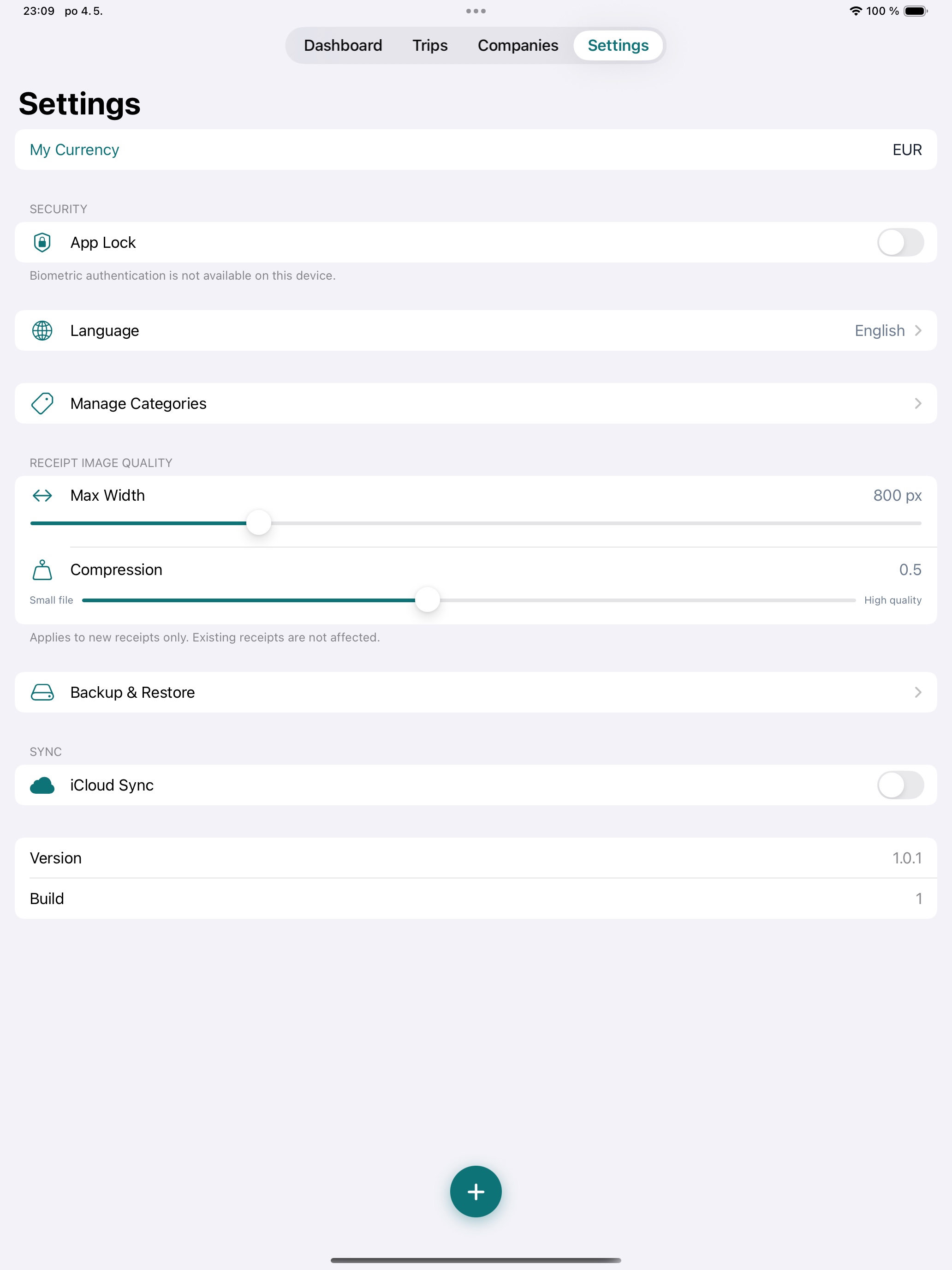
Designed for iPhone and built natively for iPad. Switch the device to explore every screen.
Your Data Stays Yours. Period.
We believe expense data is deeply personal. That's why Tripenzo was designed from the ground up so we never see your data — only you and Apple's encrypted iCloud do.
- On-device OCR. Receipt scanning runs entirely on your iPhone or iPad using Apple's Vision framework. No image ever leaves your device for processing.
- Private iCloud sync only. Multi-device sync uses your own private CloudKit container. We don't operate any servers and have no access to your content.
- No analytics or trackers. Zero third-party SDKs, cookies, or telemetry. No accounts to create, no sign-ups.
- Backup & export on your terms. iCloud Drive backups and report exports happen only when you choose. Read the full Privacy Policy.
Frequently Asked Questions
Quick answers to the questions we hear most often. For deeper guides, the in-app Help Center has a full article on every feature.
OCR is reading my receipt wrong. Why?
Tripenzo uses Apple's on-device Vision OCR, which is fast and private but depends heavily on image quality. For best results: take photos in good light, lay the receipt flat (no folds or curls), fill the frame with the receipt, and avoid shadows or glare. Crumpled, faded, or low-contrast receipts are the most common cause of mistakes.
After scanning, you always see a confirmation screen — review every field (amount, date, currency, merchant) and edit anything that looks wrong before saving. If recognition is consistently poor for a particular receipt, switch to Manual Entry from the + button.
I bought Premium but it's not unlocked on my new device. How do I restore it?
Premium is a one-time purchase tied to your Apple ID. On the new device, sign in to the same Apple ID you used to buy Premium, open Tripenzo, go to Settings → Restore Purchases, and tap it. The app talks to the App Store, finds your existing entitlement, and unlocks Premium.
If nothing happens, make sure you're signed in to the right Apple ID under iOS Settings, that the device has internet, and that you're not in Airplane Mode. Family Sharing is supported — if a family member bought Premium and you're in their Family Sharing group, Restore Purchases will unlock it for you too.
How do I export a report for a trip?
Open the trip from the Trips tab and tap the Export button in the toolbar (Premium feature). You can pick CSV for a generic spreadsheet or XLSX Report to use a template you've assigned to the company that owns the trip.
If you turn on Include receipt images, the result is a ZIP that contains the spreadsheet plus a folder of all receipts. After exporting, the iOS share sheet appears so you can email, AirDrop, save to Files, or send to any compatible app.
How do I delete a trip?
From the Trips tab, swipe left on the trip and tap Delete, or open the trip and use the Delete Trip action in the menu. Deleting a trip permanently removes the trip and all of its expenses, including receipt images — this can't be undone. If you have Backup & Restore (Premium), make a backup first if you might want the data back later.
How do I sync Tripenzo between my iPhone and iPad?
iCloud Sync is a Premium feature. Once Premium is unlocked, make sure both devices are signed in to the same Apple ID, that iCloud Drive is enabled (iOS Settings → your name → iCloud), and that Tripenzo is allowed to use iCloud. In Tripenzo, go to Settings → iCloud Sync and turn it on.
Sync uses CloudKit — your data stays in your private iCloud container, never on our servers. The first sync after enabling can take a few minutes depending on how many receipts you have; give it time, keep both devices unlocked and online, and the trips, expenses, companies, and categories will appear on the other device. If something looks out of date, check that you're not on a metered cellular connection and try opening the app on each device for a minute.
I see three exchange rates on an expense. What do they all do?
Tripenzo uses a three-tier model so finance teams get exactly the numbers they need: each expense has a currency, each trip has a rate that converts the destination currency to the company's currency, and each company has a rate that converts company currency to your home ("My") currency.
Per-expense overrides let you fine-tune both rates for that one receipt. You can fetch live rates from the rate field, type them manually, or — uniquely in Tripenzo — edit the converted amount directly and the app reverse-calculates the rate for you (handy when you want a converted total to match a known number).
Can I export into my company's own XLSX template?
Yes. In the Companies tab, open a company and add a template (XLSX or CSV). Tripenzo can auto-detect column headers, OCR a photo of a printed template, or let you map columns manually. The mapping is saved per company, so every export for trips at that company uses the right structure. When you export with Include receipt images, the XLSX is bundled into a ZIP alongside a receipts folder.
I get PDF receipts by email. Can Tripenzo handle them?
Yes. From the + button choose Import PDF and pick the file. Tripenzo runs OCR on each page and stores the original PDF as the attachment. Photo receipts (JPEG/HEIC) work the same way via Take Photo or Choose from Gallery. Both kinds of attachments are kept permanently on your device and shown in the expense detail.
What's in a backup, and how do I restore on a new phone?
Backup & Restore is a Premium feature that exports everything: all trips, expenses, companies, categories, settings, and receipt images/PDFs — bundled into a single ZIP. Save it to iCloud Drive or your local Files.
To restore on a fresh install, install Tripenzo, unlock Premium (or Restore Purchases), then open Settings → Backup & Restore → Restore and pick the ZIP. Backups are independent of iCloud Sync — you can use either or both.
How do I lock the app behind Face ID?
App Lock is a Premium feature. In Settings → App Lock, turn it on; the app will use Face ID or Touch ID automatically when available, and you can also set a 4-digit PIN as a fallback. If your Premium entitlement ever lapses (refund, family sharing change), App Lock is automatically disabled so you don't get locked out of your own data.
Is Premium a subscription?
No. Premium is a one-time purchase that unlocks five features forever: OCR Auto-Fill, Export Reports (CSV and XLSX), Backup & Restore, App Lock, and iCloud Sync across iPhone and iPad. The exact price depends on your country and is shown in-app on the upgrade screen. Family Sharing is supported — one purchase covers your whole iCloud Family. There are no subscriptions, no ads, and no recurring fees.
How do I request a refund?
All purchases — including Tripenzo Premium — are processed by Apple, and refunds are handled by Apple too. Request a refund at reportaproblem.apple.com, sign in with your Apple ID, find your Tripenzo purchase, and follow the steps. We don't have visibility into App Store purchases and can't issue refunds ourselves, but if Apple needs us to confirm anything we'll help.
What data does Tripenzo collect?
None. Tripenzo has no servers, no analytics, no tracking, and no ads. OCR runs on your device using Apple's Vision framework — your receipts never leave your phone unless you explicitly export or share them. iCloud Sync uses your own iCloud container; we have no access to it. The only network calls the app makes are optional live exchange-rate lookups (to public rate providers) and Apple's StoreKit for verifying Premium entitlement.
Can I use Tripenzo in my language?
Tripenzo is fully translated into 25 languages. Open Settings → Language and pick yours — the change takes effect immediately, no restart needed. If you spot a translation that reads oddly, email us at tripenzo@stopra.cz and we'll fix it.
Can I add custom expense categories?
Yes. Tripenzo ships with 14 predefined categories (Food & Drinks, Transport, Accommodation, Fuel, Parking, Tolls, Flight, Train, Taxi/Ride, Entertainment, Office Supplies, Communication, Tips, Other) and you can add as many custom ones as you like in Settings → Manage Categories. Each expense can be tagged with multiple categories.
Still need help?
For deeper guides on every feature, open the in-app Help Center (Settings → Help Center). For anything not covered here, email us at tripenzo@stopra.cz and we'll get back to you.